
How do I customize formatting on my translated website?
Please note that when implementing custom CSS in Layout mode, you may need to wait up to 10 minutes for the change to take effect on your live website due to caching.
Overview
For certain languages, the text on your webpage may expand or contract upon translation to the point where the formatting may need to be adjusted. For example, compare the sentences below:
EN: Add these items to my shopping cart.
DE: Fügen Sie diese Artikel meinem Einkaufswagen hinzu.
KO: 이 상품을 장바구니에 담습니다.
We can see that the German translation expands compared to the English source text, and the Korean translation contracts. While a common occurrence in translation, text expansion or contraction may lead to formatting issues on your website.
Customizations to the layout or formatting on your translated website can be made directly in the context of your translated pages in Layout mode on Bablic Studio. Studio is only accessible from the Desktop app. If you haven't already, download the Desktop app from your User dropdown menu in the top right corner of the web platform.
It is recommended that you have at least a baseline knowledge of CSS when applying properties in your Custom CSS Editor.
Scenario
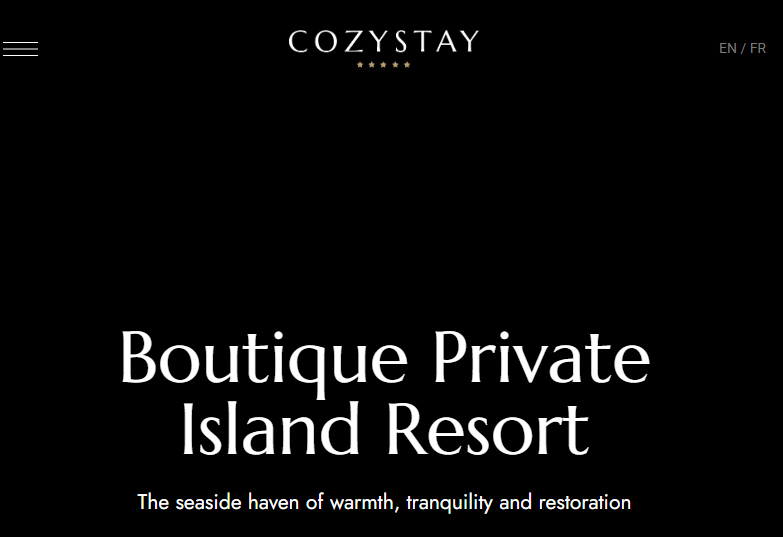
Let's say you notice a minor formatting issue on a key landing page on your translated website. For example, in the screenshots below, the heading text on the French page expands upon translation resulting in 3 lines on the page compared to 2 on English.
English (Boutique Private Island Resort):
French (Boutique privée et complexe hôtelier sur l'île):
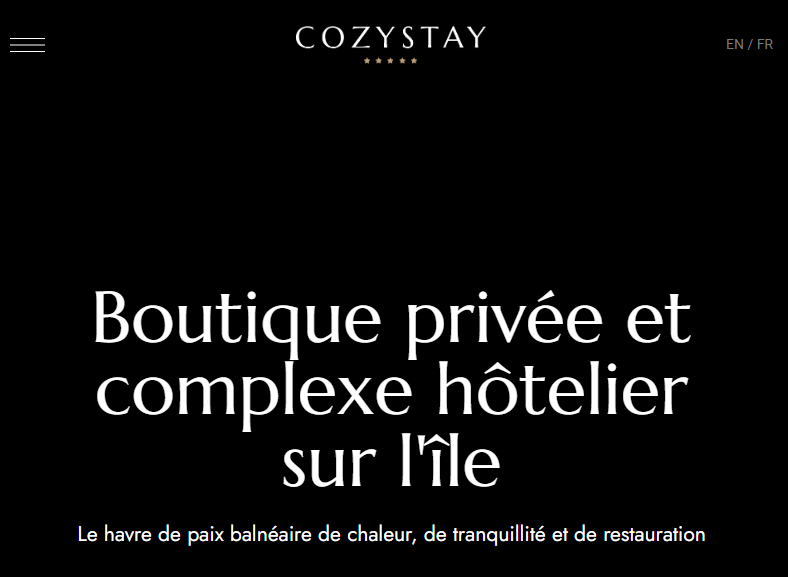
We'll use Layout mode on Bablic Studio to reduce the font-size and make this a 2-line heading on the French page.
Launching Layout Mode on Studio
To open Bablic Studio in Layout mode, go to your Languages page under Project and click the book icon next to the relevant language you want to customize:

This will open Bablic Studio in Layout mode, at which point you will see your translated website in the left hand pane and a Custom CSS Editor in the pane on the right:
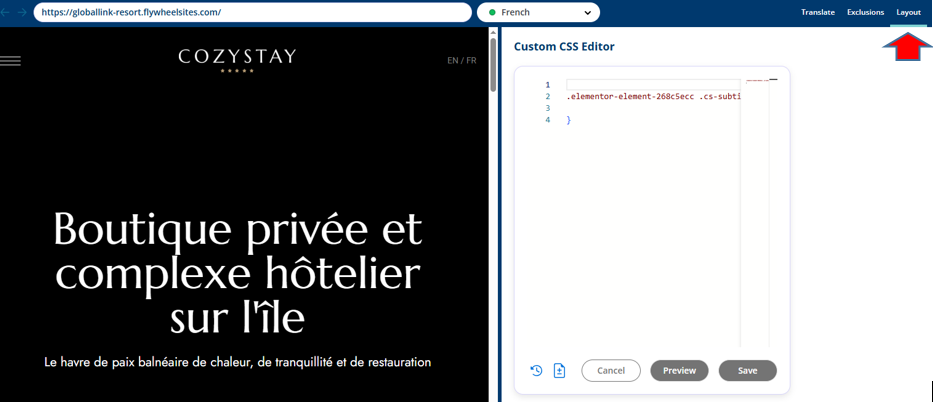
You can adjust the docking of the Custom CSS Editor from the gear icon in the top right corner of your Studio.
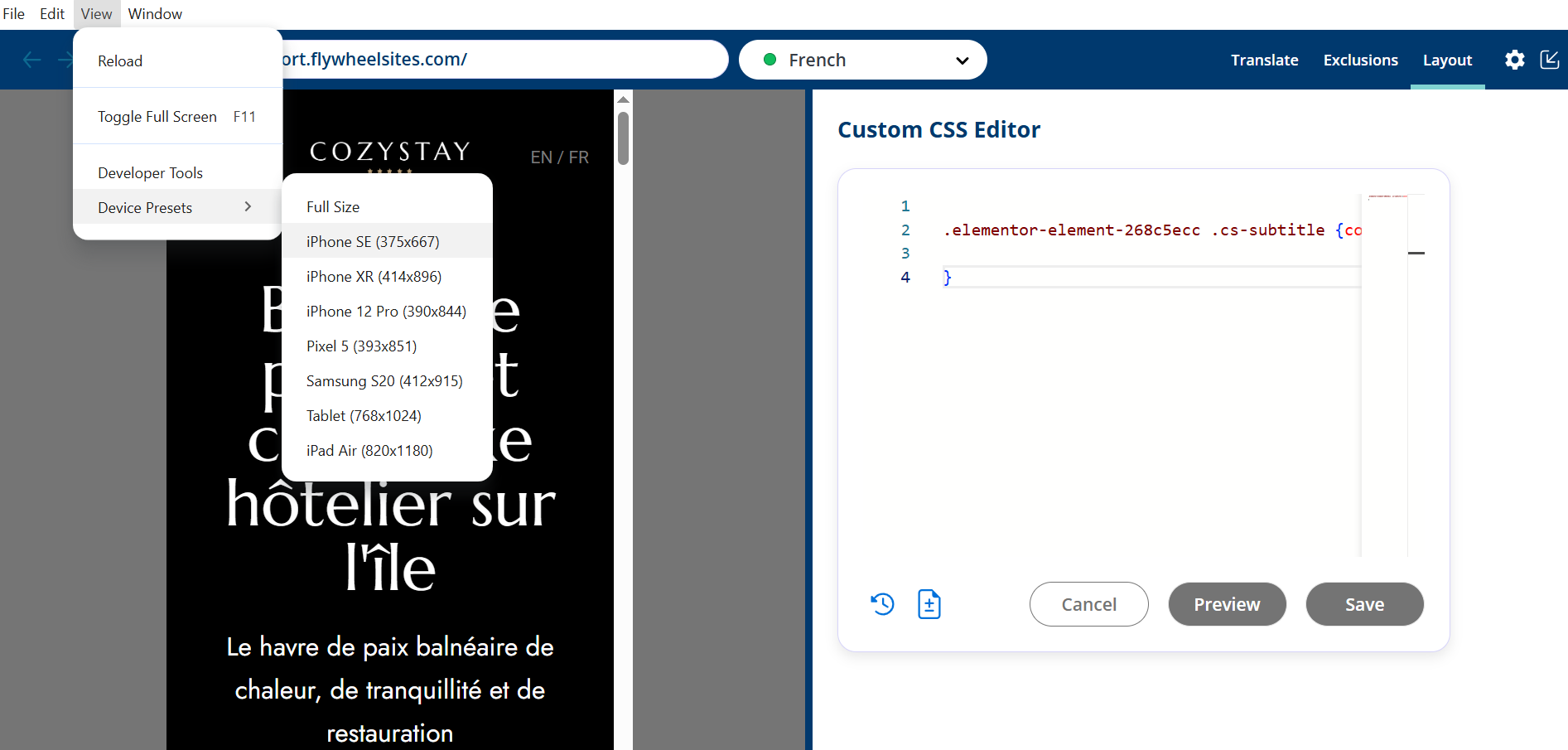
And you can choose from a preset list of common device emulators from the View option in the menu bar:
Control the Layout of your translated website
Start by right-clicking on the block that you want to adjust. The CSS selector for the block you chose will be automatically added in the right-hand pane. Now click on Add new CSS.
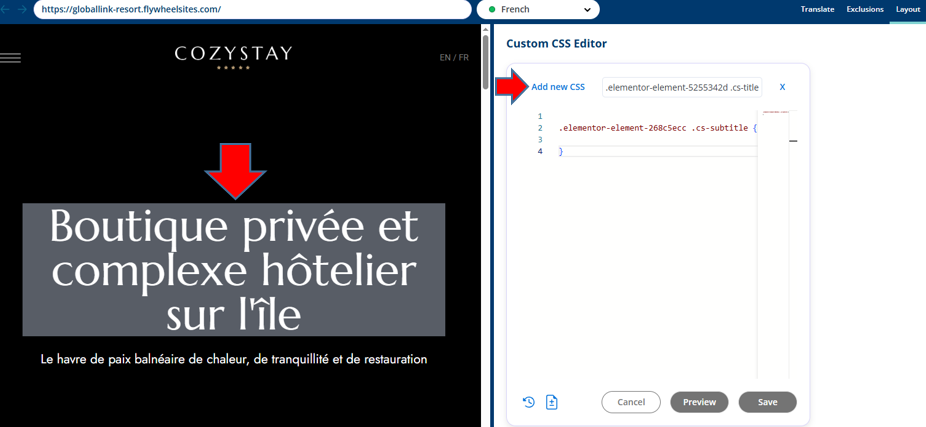
In the ensuing custom CSS Editor, apply the relevant properties needed to adjust the layout of your page according to your specifications. You can test your changes in-context as you work by clicking the Preview button below the Editor.
In the example of our 3-line French heading, we'll add the font-size property and preview different pixel values to reduce the font size until we've achieved the 2-line formatting we want.
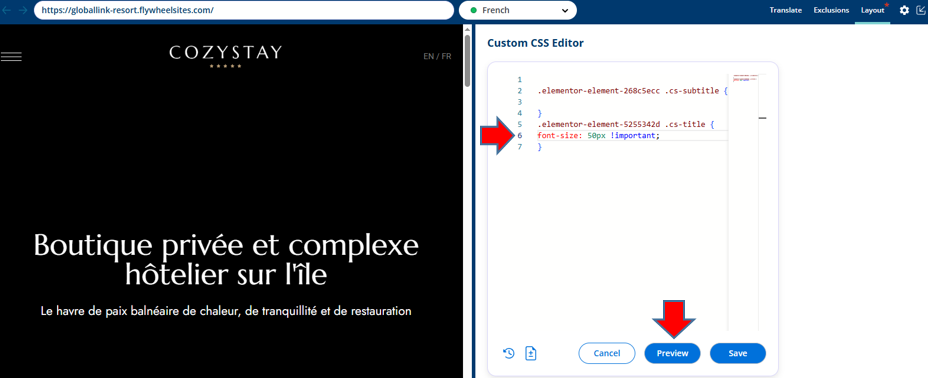
Once done, be sure to Save your changes!
Any Custom CSS changes applied from the Editor can be tracked from the History and Compare options in the bottom left corner of your Editor.