How do I review & edit my translations?
Please note that when saving edited segments to Live status, you may need to wait up to 10 minutes for the change to take effect on your live website due to caching.
Overview
Edits to your translations can be made directly in the context of your translated pages on Bablic Studio.
Bablic Studio is only available on the Desktop App. If you haven't already, download the Desktop App from your User dropdown menu in the top right corner of the web platform.
Launching Translate Mode on Studio
Once on the Bablic Desktop App, click on any one of the external links to Studio next to the applicable target language that you want to edit. For example, on the Dashboard page under My Languages:
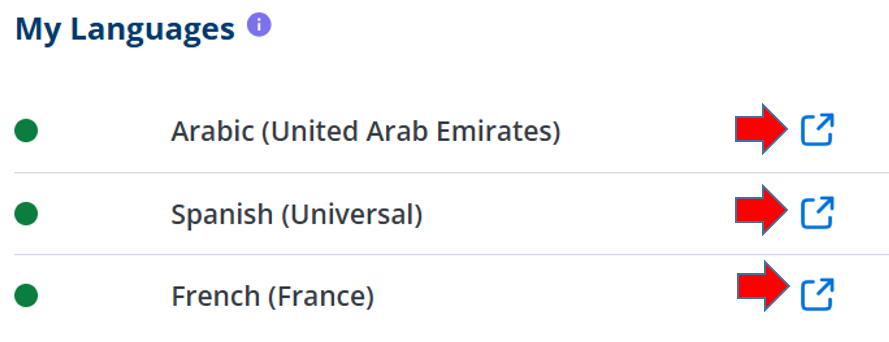
This action will launch Translate mode on Bablic Studio for the specific language you've selected.
You will see your translated website displayed in the left hand pane, where you can freely navigate like a regular user. As you navigate to each page, you will see all of the segments on that page loaded into a bilingual table in the editing pane on the right. In this bilingual table, your source text is on the left and the editable translations are on the right.
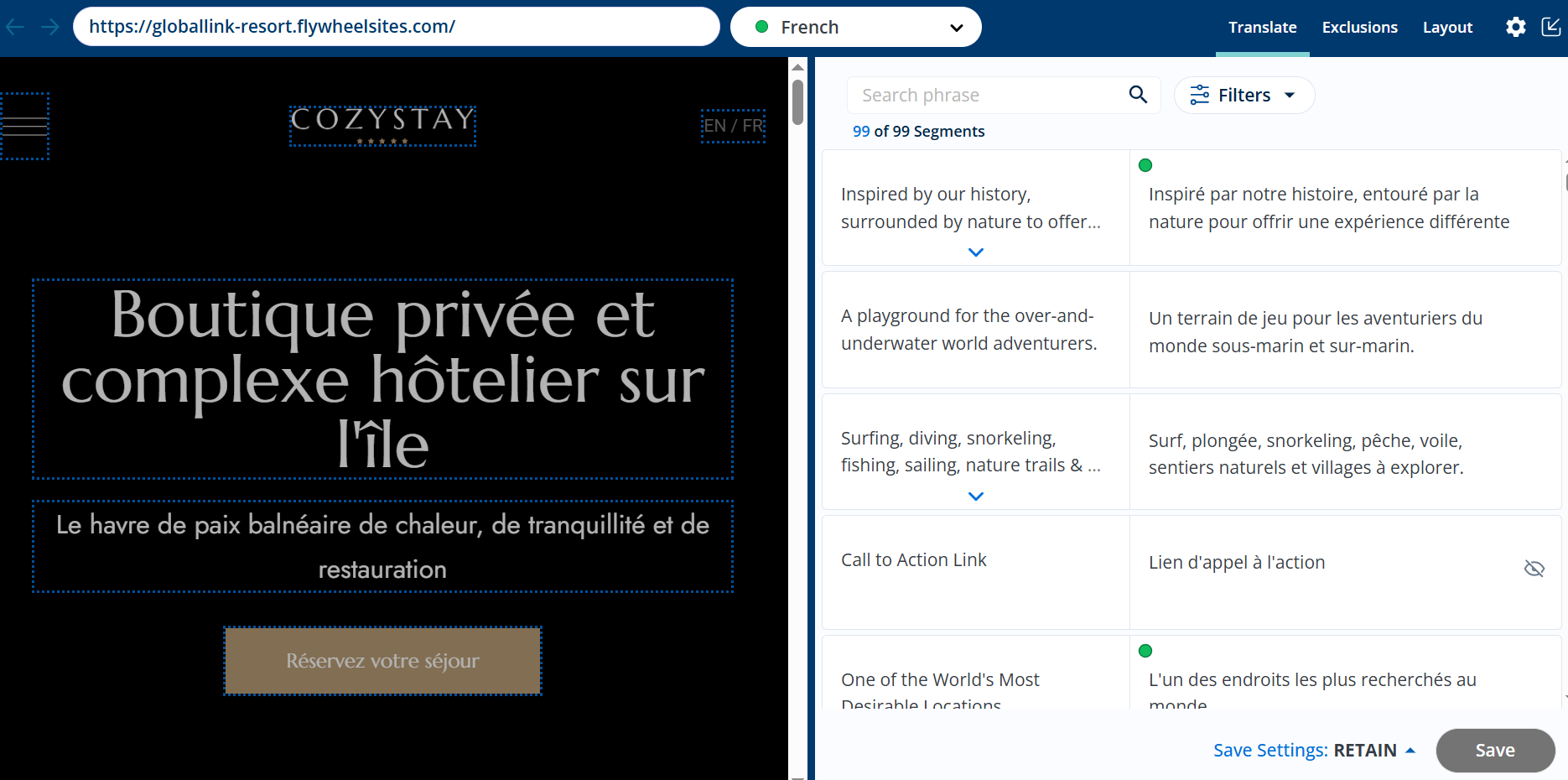
You can adjust the docking of the editing pane from the gear icon in the top right corner of your Studio.
Searching & Filtering
Use the Search phrase feature at the top of the editing pane to find specific words or phrases on your page. The search works on both source text and translated text.
You can also filter by segment status and translation source from the Filters option next to the search.
Save Settings
Before performing any translation edits, you will want to decide what happens to each edited segment after you've saved it. At the bottom of the editing page, you will see a Save Settings selector with three options to choose from.
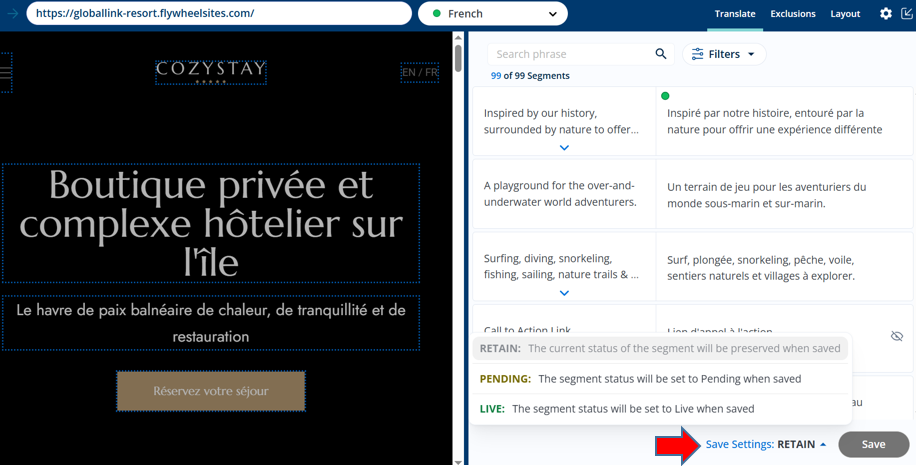
Retain = this default setting will preserve the status of the edited segment. If a segment is Live on your website, it will remain Live on your website after you've saved your change. If the segment is Pending, it will remain Pending after you've saved your change. If the affected segment is a Machine Translation currently live on your website, the Retain setting will result in your saved edit going straight-to-Live.
Pending = choose this setting to put any saved edits into a Pending status. Segments in the Pending status are identifiable by their yellow status icon and are not yet visible on your Live website. Putting your edits into a Pending status allows them to be further reviewed or adjusted prior to publishing.
Live = choose this setting if you want your saved edits to go straight-to-Live. Segments in the Live status are identifiable by their green status icon and are publicly visible to your users.
Editing Your Translations
To edit any of your translations, double-click into the relevant target box in the editing pane or click on the edit icon.
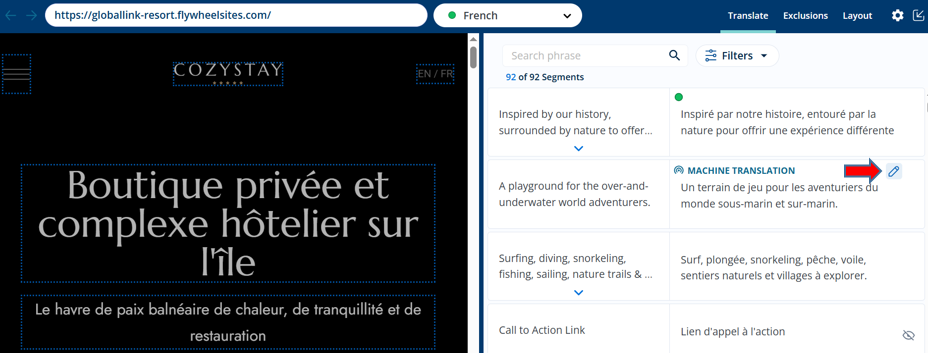
As you make your edits, you will see your changes taking effect on your translated page in real-time. Bablic's "What You See Is What You Get" edit ability allows you to edit your translations in a way that visually reflects the final output to your users.
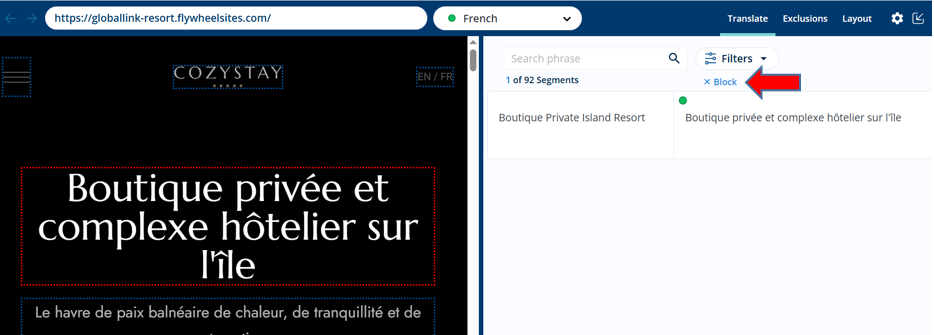
To target a specific block on the webpage for editing, right-click on the relevant text on your translated page. This action will load only the segment(s) in that block in the editing pane. To clear the selected block and restore all available segments on the page, click the Clear Block option above the target box.
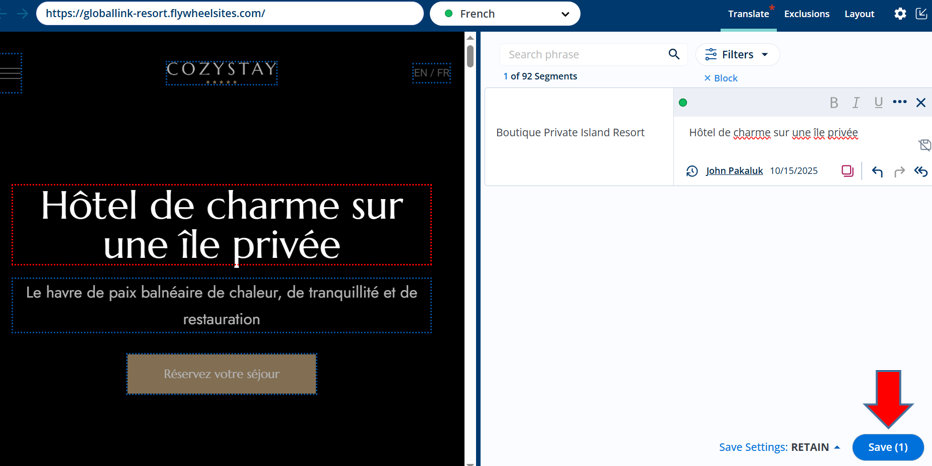
Once your edits are complete, remember to click the blue "Save" button in the bottom right corner of the editing pane. The Save button will track the number of unsaved changes that were made during your review session.
Approving Pending Segments and Machine Translations
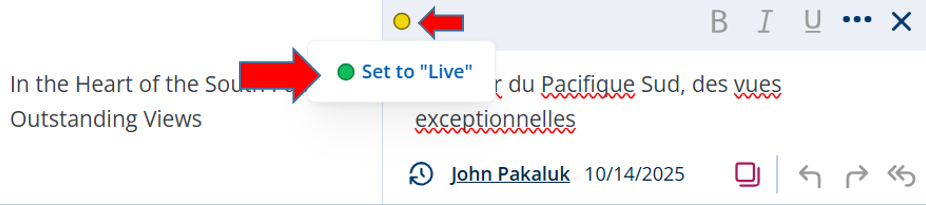
Once a Pending segment is approved, you can move it to Live status by double-clicking into the applicable target box or clicking the edit button. Once in edit mode, click the yellow status icon in the top left corner and select "Set to Live" in the resulting tooltip.
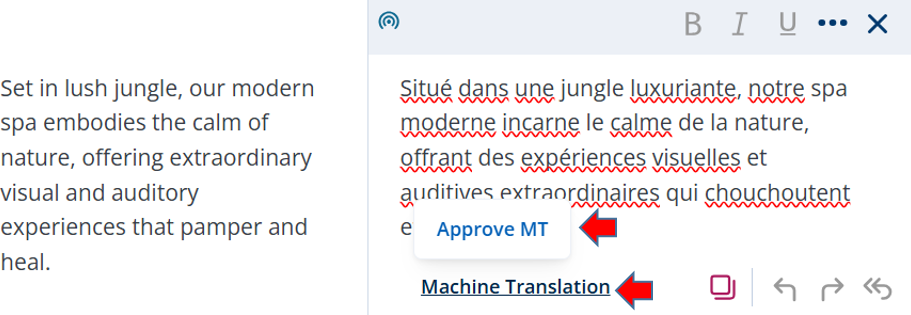
You can also approve any default Machine Translations and set them to Live status. To do so, double-click into the relevant target box or click the edit icon. Once in edit mode, click the Machine Translation link at the bottom and select "Approve MT" in the resulting tooltip.
When approving Pending Segments or Machine Translations, remember to save your changes!
Contextual Translations
You may have identical segments across multiple pages on your website, and you may want to translate those segments differently depending on which page the user is on.
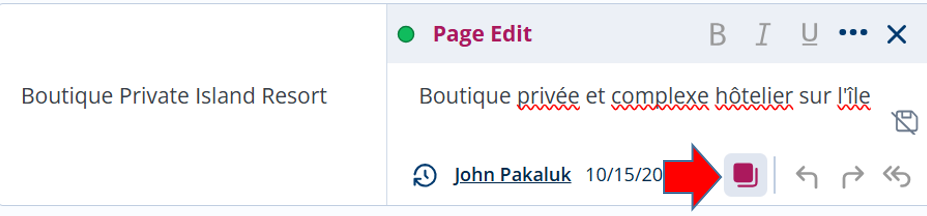
For example, let's say you have the following segment on multiple pages of your site: "Boutique Private Island Resort."
On your French homepage, you decide to translate this as "Boutique privée et complexe hôtelier sur l'île".
But on all other pages, you want to translate this same segment as "Hôtel de charme sur une île privée."
You can apply page-specific translations for identical segments via the Contextual Translation feature. To enable Contextual Translation on any segment, click the purple page icon in the target box prior to saving your edited segment. The segment will then appear as a "Page Edit" in the target box. Once saved, the edited translation will display only on that specific page.