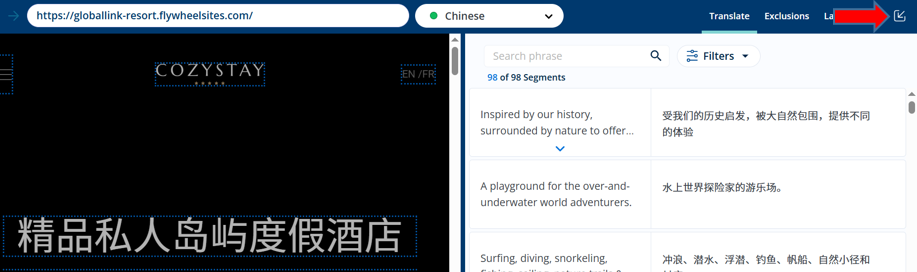
Introduction to the Bablic Platform
Overview
The Bablic platform is your control center for your website translation project. Any customizations that you implement on the Bablic platform will be reflected on your translated website.
You can add or remove languages, implement Glossary rules, edit your translations, manage users, customize scope, control the style & placement of your language selector, and much more. Throughout this Knowledge Base, you will find supporting documentation detailing all of these features and how to use them.
Once you've created your account, you can use Bablic either in a browser or on the Desktop App. The Desktop App can be downloaded from your User dropdown menu in the top right corner of the web platform.

You can manage your project from either the browser or the App, but there are two key differences to note:
1: Subscription management is only available on the browser.
2: Bablic Studio is only available on the Desktop App.
What is Bablic Studio?
Bablic Studio is your in-context editing suite. While many customizations can be implemented out-of-context, others are best made directly on your translated pages. In-context editing on Bablic Studio allows your team to make and approve customizations to your translated pages before rolling them out to your users.
Bablic Studio Capabilities
There are three in-context modes available on Bablic Studio:
1: Translate - Allows you to review and edit your translations
2: Exclusions - Allows you to apply No Translate Rules on block-level elements.
3: Layout - Allows you to control the layout of your translated pages.
Regardless of which mode you're working in, you will be able to navigate your website like a regular user and even hit specific URLs on your website from the address bar. Only the domains listed on your project will be viewable in Studio.
You can also customize the docking of your editing pane from the gear icon in the top right corner.
Additional functionality is available in the menu bar, including access to Developer Tools and emulators for a preset list of common devices.
Launching Bablic Studio
Regardless of which mode or language you launch initially, you can toggle to the other available modes and languages at any time from the top navigation:
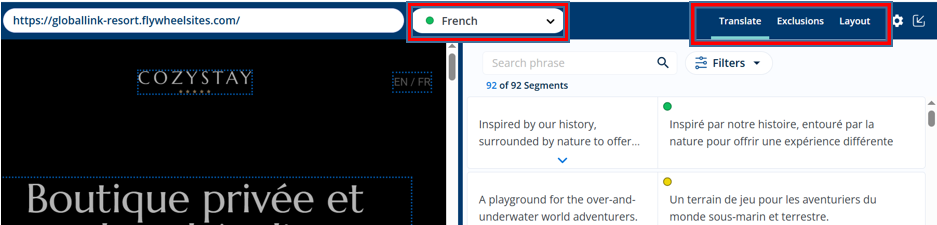
But depending on your user role, you may not have access to all 3 modes or all available languages in Studio. If this is the case, you may need to launch directly into the mode relevant to your role.
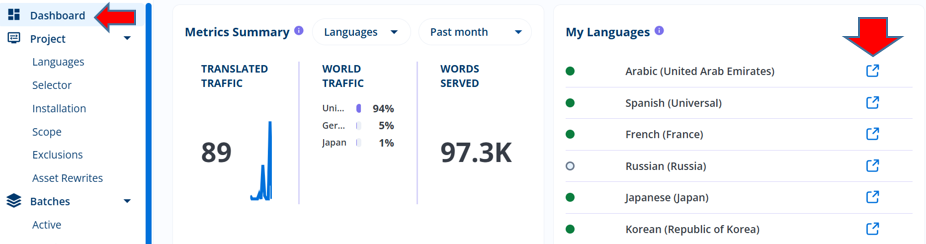
You can launch directly into Translate mode by clicking the external link to Studio next to the language you want to review and edit. For example, from your Dashboard page:
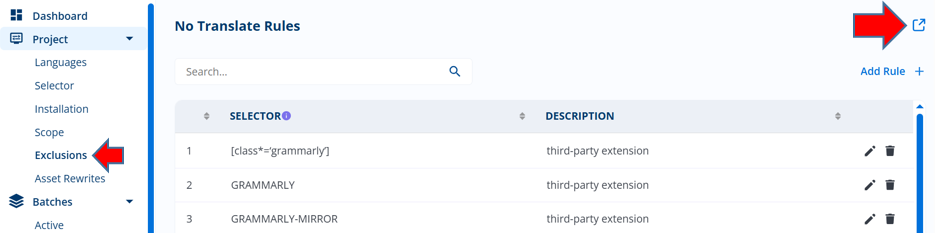
You can launch directly into Exclusions mode by clicking the external link to Studio in the top right corner of your Exclusions page:
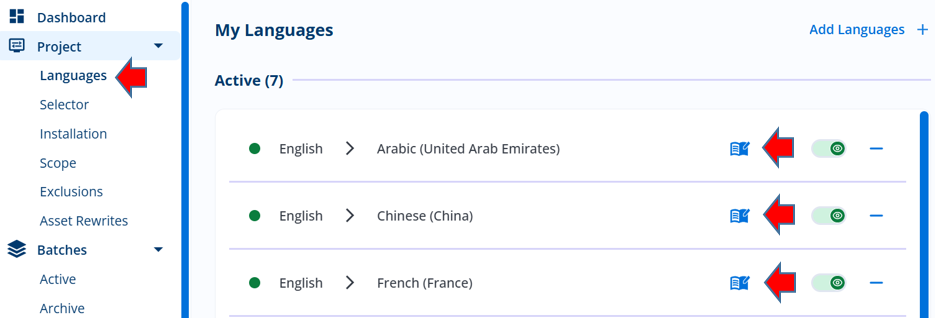
You can launch directly into Layout mode by clicking the book icon next to the language you want to customize on your Languages page:
Exit Studio at any time by clicking the Close Studio link in the top right corner. Be sure to save any changes prior to exiting.