
How do I deactivate and reactivate languages?
Please note that when deactivating or reactivating languages, you may need to wait up to 10 minutes for the change to take effect due to caching.
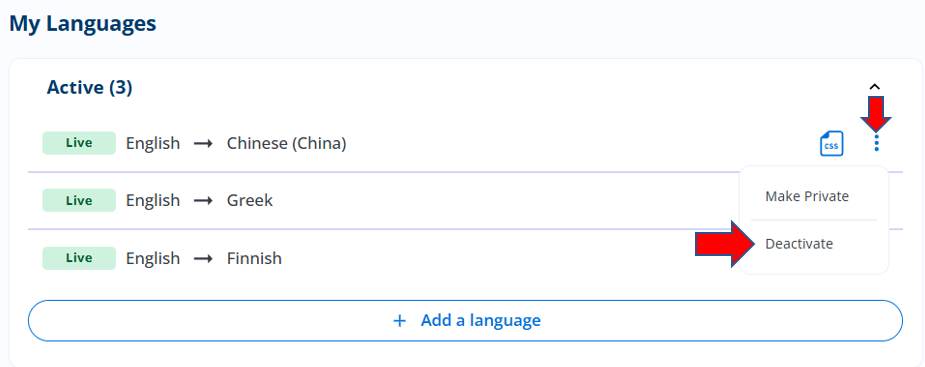
Deactivating languages will remove them from your selector whether your project is in Private Mode or Live. If you decide you want to deactivate a language or multiple languages, please go to your Project > Languages page.
You can then deactivate languages by clicking on the kabob menu next to the language(s) you want to deactivate, and then click "Deactivate" and "Confirm" from the pop-up.
Please note:
1) Languages that have been deactivated will not be visible in your selector, even when viewing your website in Private Mode.
2) Deactivating all languages will remove the language selector from your website entirely.
3) Deactivating a language that you no longer need has a strategic benefit, as deactivated languages will no longer consume any pageviews from your monthly volume in Private Mode.
Historical data for inactive languages, including any translations consumed, will be retained. Additionally, any customizations made to the target language prior to deactivation, such as glossary rules or translation edits, will be preserved in the event that the language is ever reactivated in the future.
Inactive languages can be reactivated at any time by clicking the plus sign next to the applicable language on your Languages page, and then clicking "Reactivate" on the tooltip:
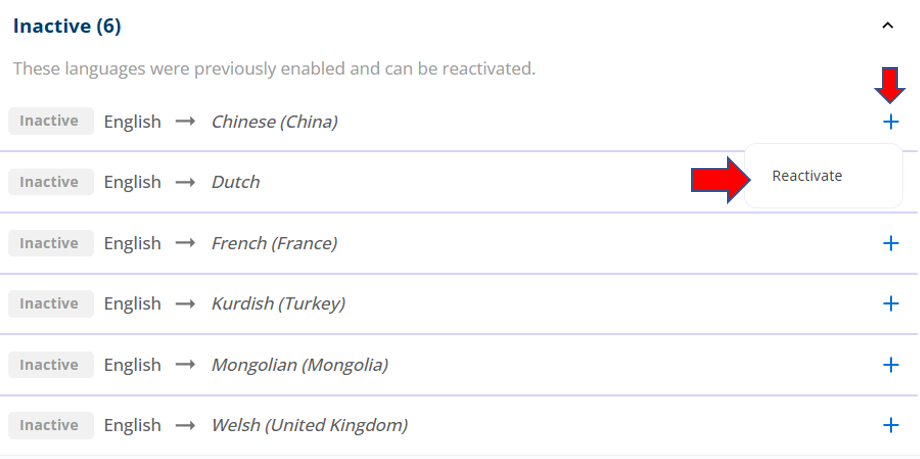
Reactivating a language will put it back into your language selector.