
How do I go live with my translations?
Please note that when going live with your translated website, you may need to wait up to 10 minutes for the change to take effect due to caching.
If you haven't already, you must place your Bablic script into the <head> section of the website you want to translate. Your Bablic script can be retrieved from your Installation page (under the "Installation" tab), and it can be placed on any website environment you control. You can also find installation guides for some of the more popular CMS platforms in our Implementation Guides section. If you require any support with the script injection, please feel free to email us for support.
It is important to note that your translated website will never be publicly available to your visitors until you say so. You can safely integrate your Bablic script onto your site without impacting the experience of your users.
Once you've integrated the Bablic script onto your site, your project will be in Private Mode by default. Private Mode will allow you to preview your translated website prior to going live. While in private mode, you can also make translation edits in-context, apply glossary terms or No Translate rules, and perform any other customizations that you require. Any customizations made while in private mode will be retained when you officially go live.
When you’re ready to make your translated website available to the public, go to your Dashboard page and simply click on "Set Translations Live" at the bottom of your Setup Checklist:
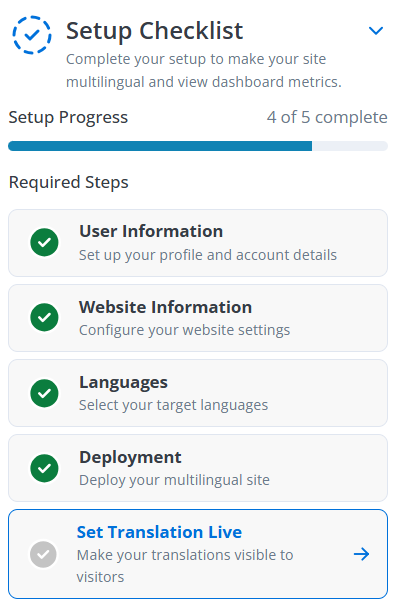
Then click the blue "Go Live" button from the ensuing pop-up, and you're done!
Within 10 minutes, any languages that are set to "Live" on your Languages page will be live and available to your users. For example, in the screenshot below, Chinese would be live while Finnish would remain in Private Mode.

This allows you to go live with your languages individually if you prefer, instead of all at once.
When you are ready to go live with Finnish too, just click the kabob menu to the right and then click "Make Live":
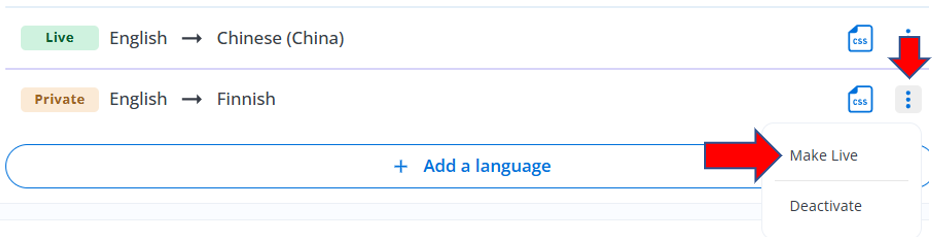
You can use this kabob menu to move languages in and out of Private Mode as needed, and even deactivate them entirely.