
Let’s integrate Bablic with your Canvas site. This guide will help you get started. Here are the things you’ll need before you get started:
-
A Bablic account (Don’t have one? Click here!)
-
A paid Canvas account.
Click here to log in to your Canvas admin site to get started.
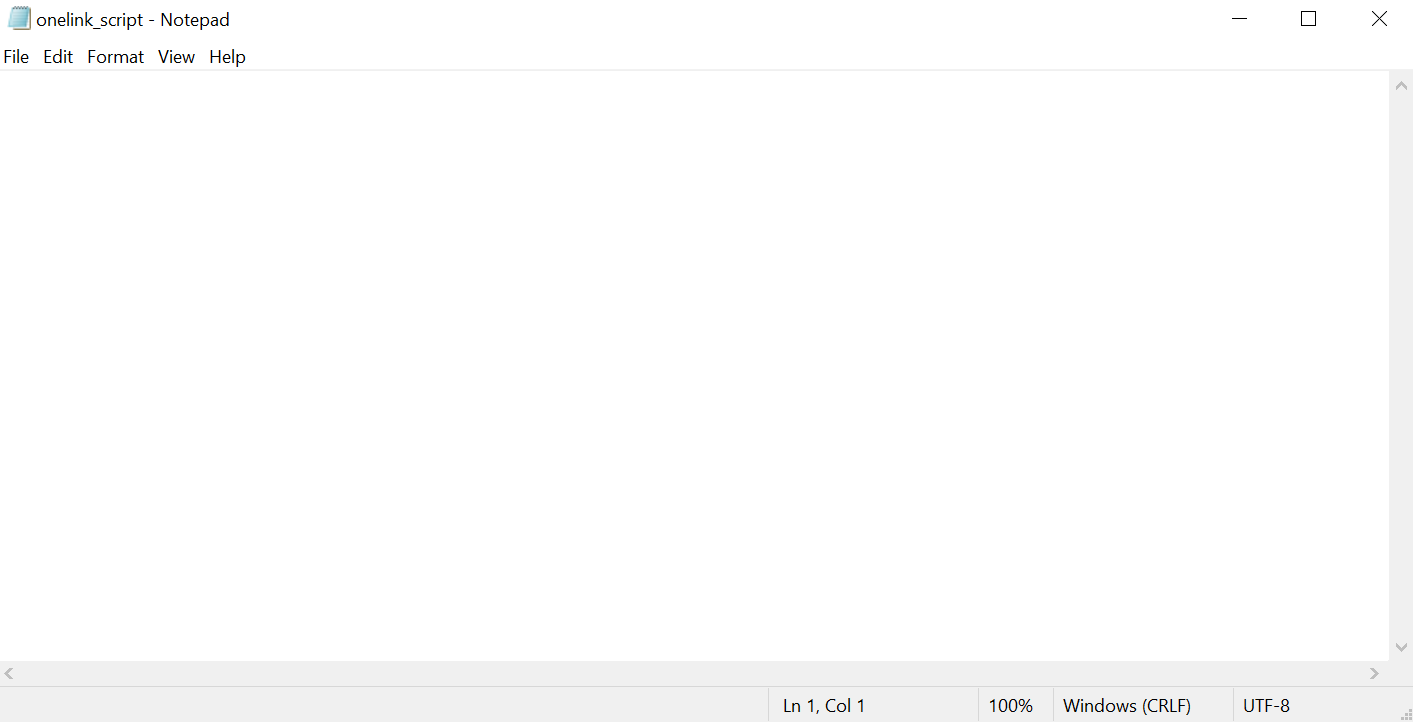
Create a JavaScript text file on your computer called onelink_script.js
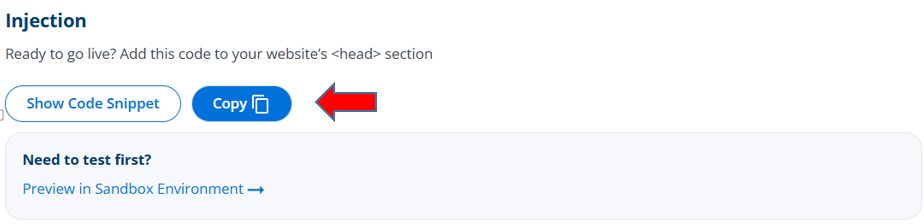
Click here to log in to your Bablic project. Under Project in the left-hand menu, go to your Installation page and copy your snippet of JavaScript from the Injection card at the bottom of the page.
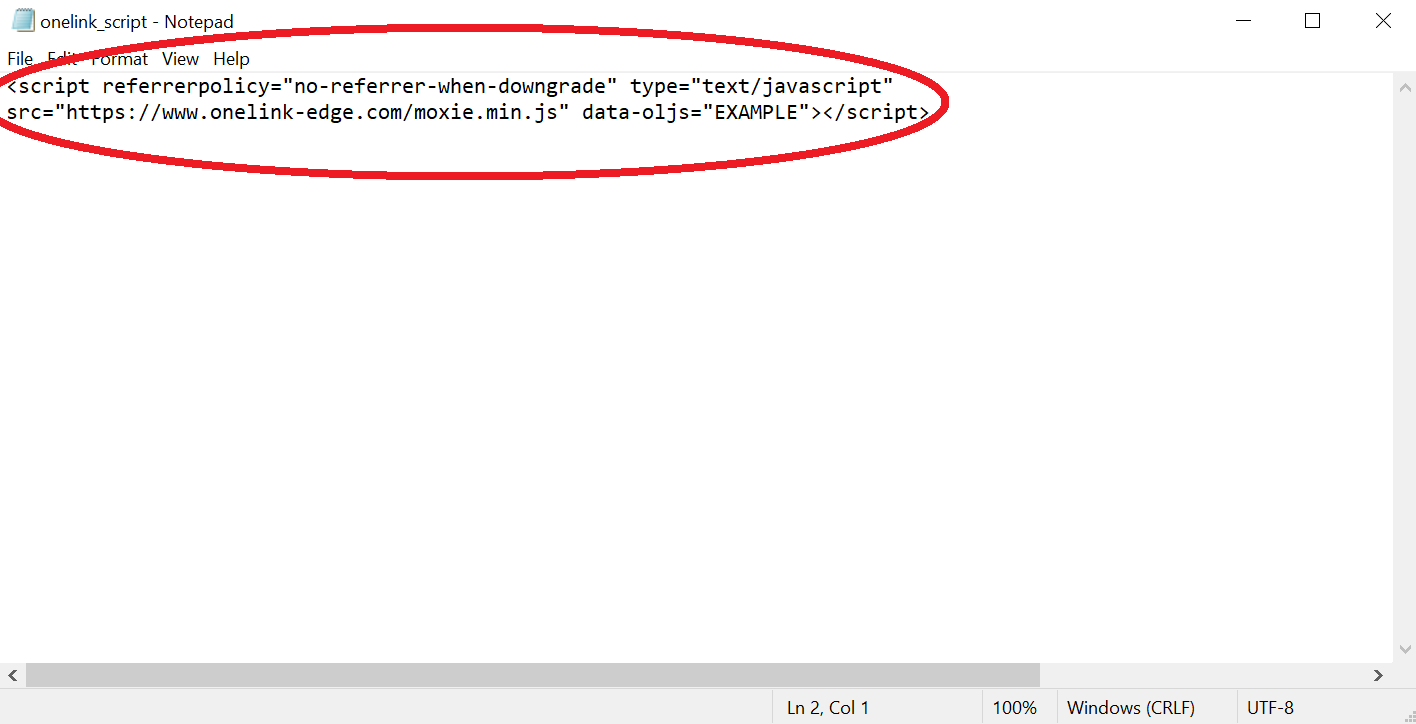
Paste the snippet of code into the file and remember to save it.
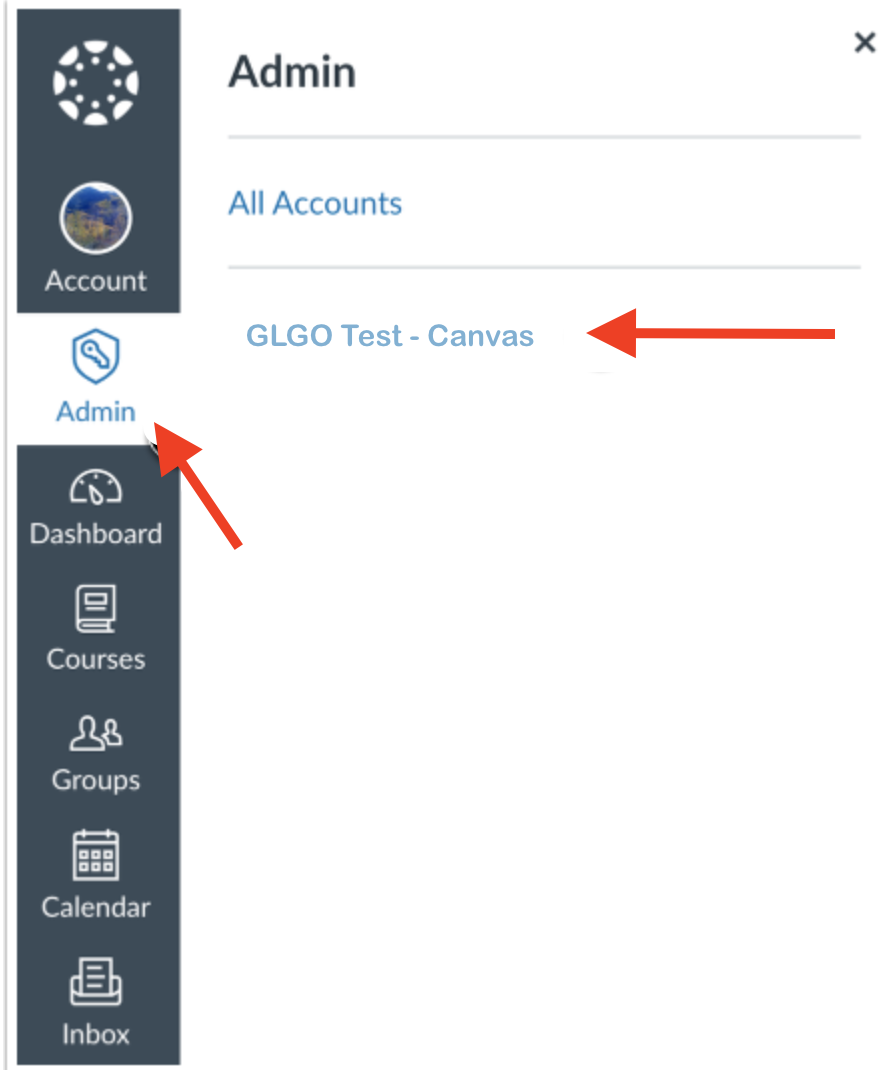
In Global Navigation, click “Admin” and then the admin account’s name.
Click on “Themes”.
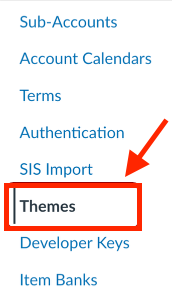
In Account Navigation, click on Themes, then in the Theme Editor, click the “Upload” tab.
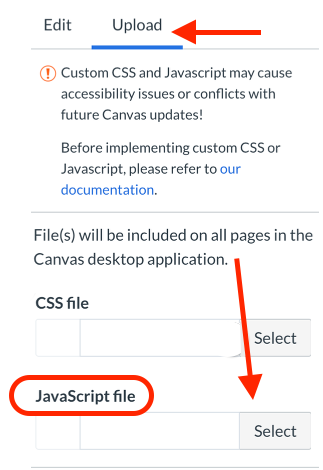
Locate the JavaScript section and click “Select” to upload the file created above.
Click “Save Theme” followed by “Apply Theme”.
Click here for Canvas’s help page for adding custom code.