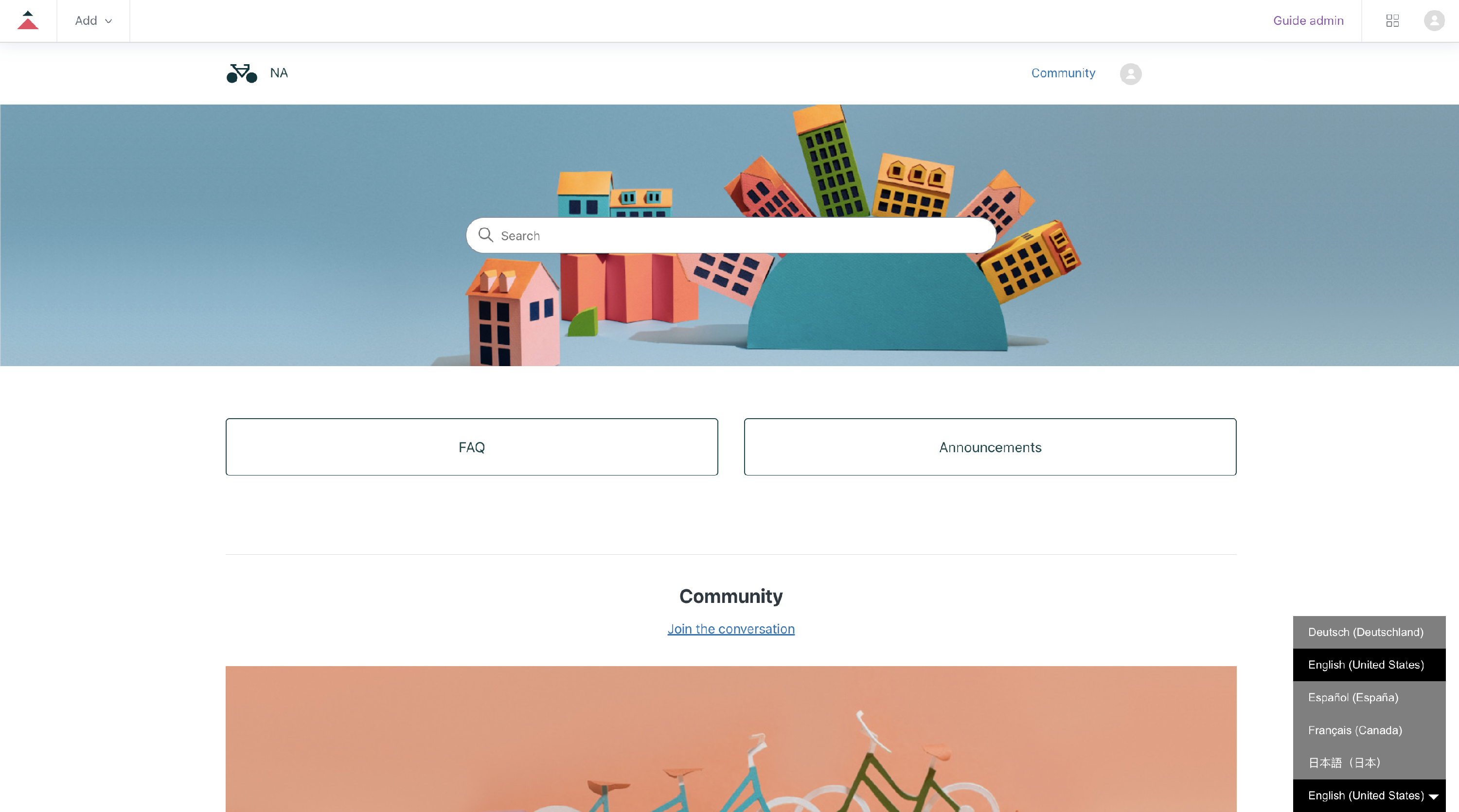
Let’s integrate Bablic with your Zendesk site. This guide will help you get started. Here are the things you’ll need before you get started:
1 = A Bablic account (Don’t have one? Click here!)
2 = A paid Zendesk subscription.
Click here to log in to your Zendesk dashboard to get started.
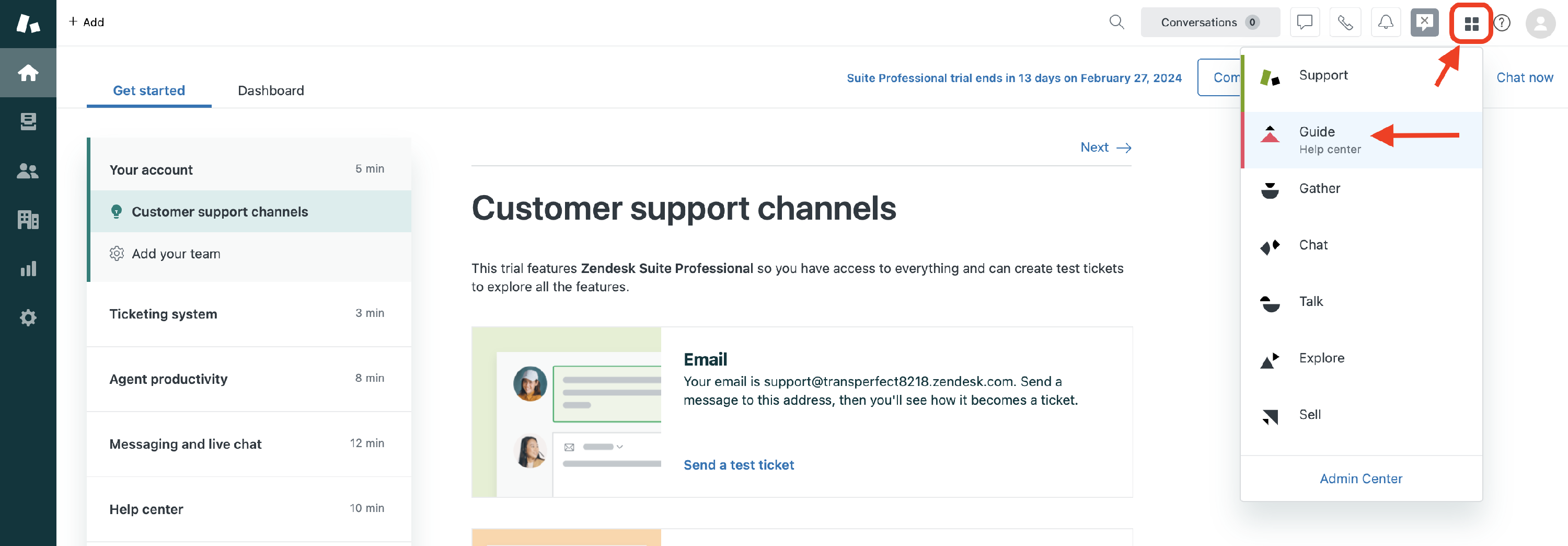
Click on the four-square drop-down option in the top right corner and select “Guide”.
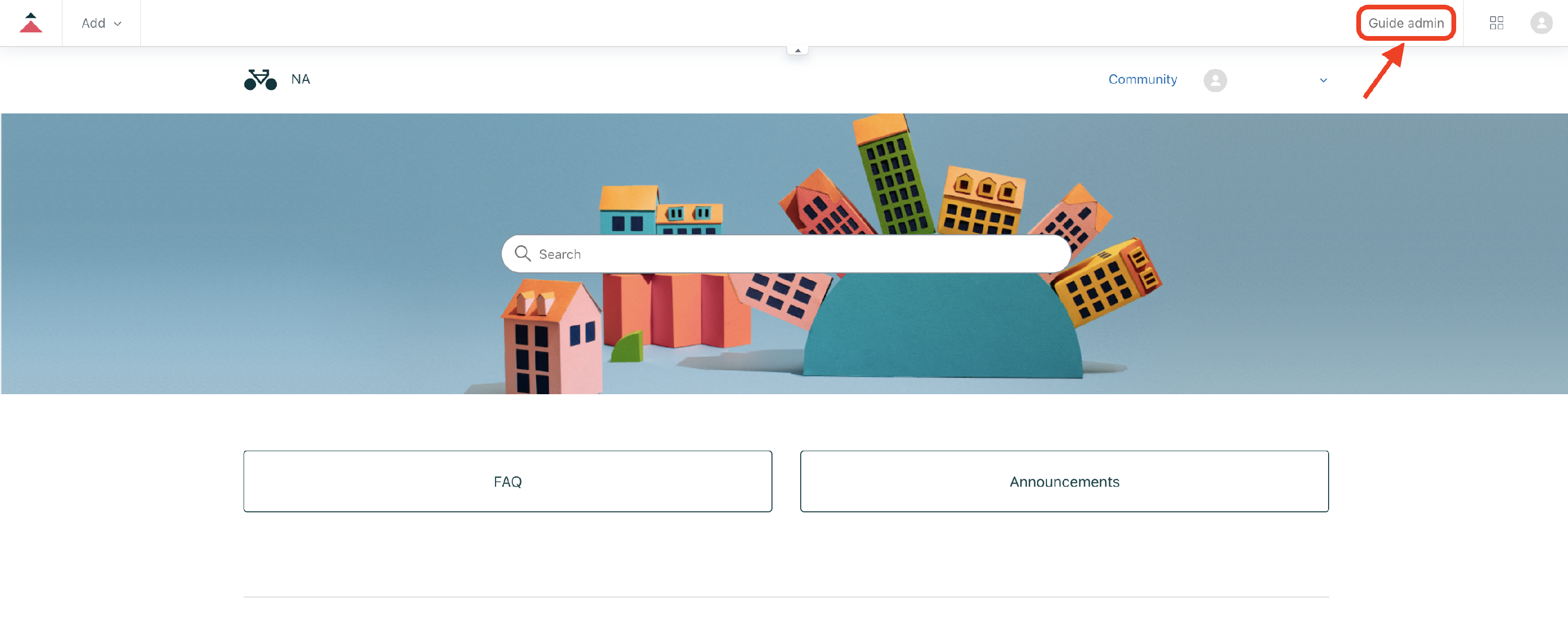
From the Guide help center, click on “Guide admin” in the top right corner.
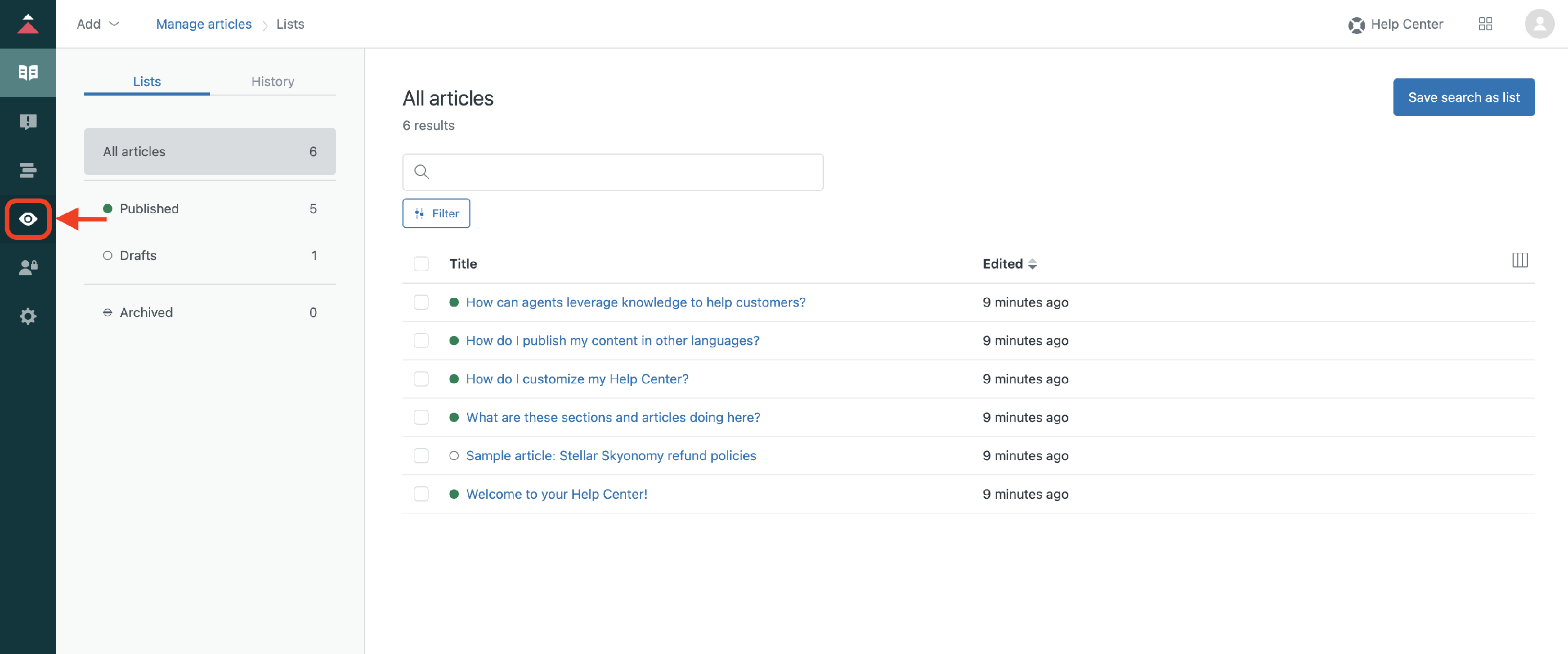
Click on the eye icon, “Customize design”, from the left-side navigation bar.
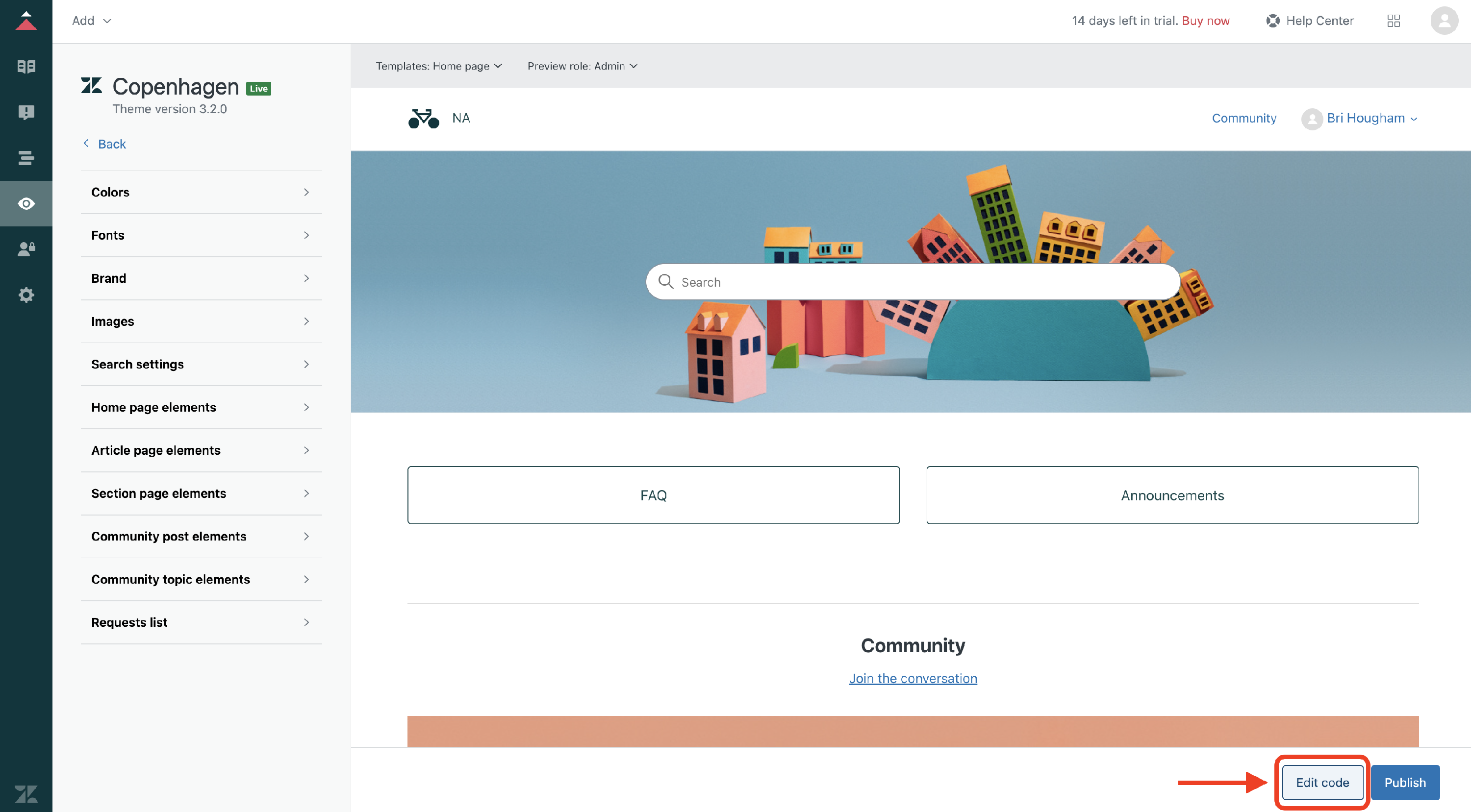
Then click “Edit code” in the lower right corner.
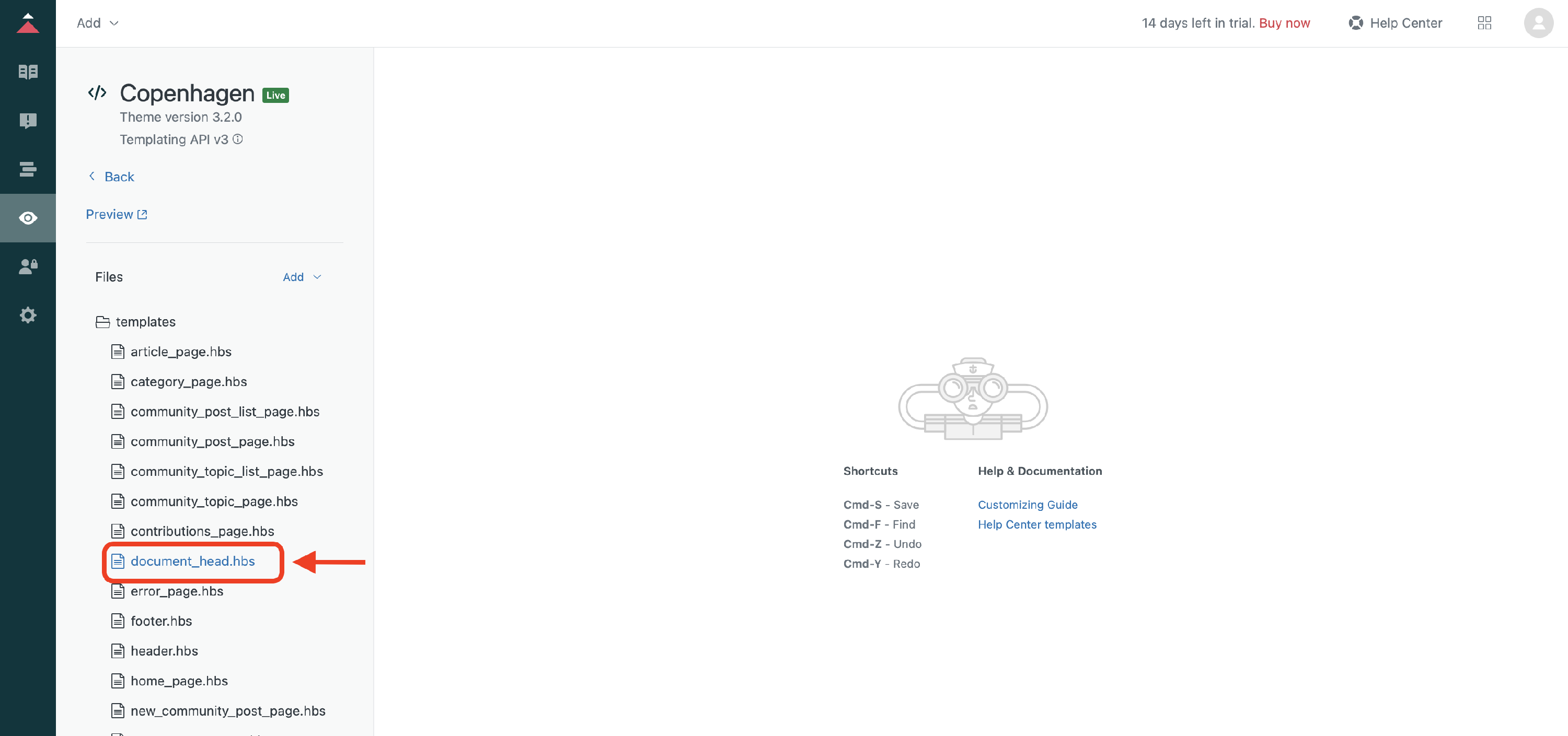
Scroll to find and select “document_head.hbs”.
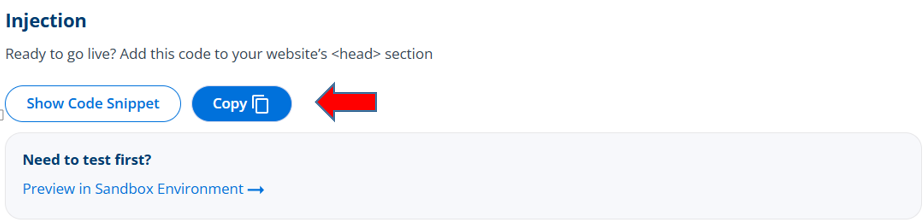
Click here to log in to your Bablic project. Under Project in the left-hand menu, go to your Installation page and copy your snippet of JavaScript from the Injection card at the bottom of the page.
Paste the code in the “document_head”.
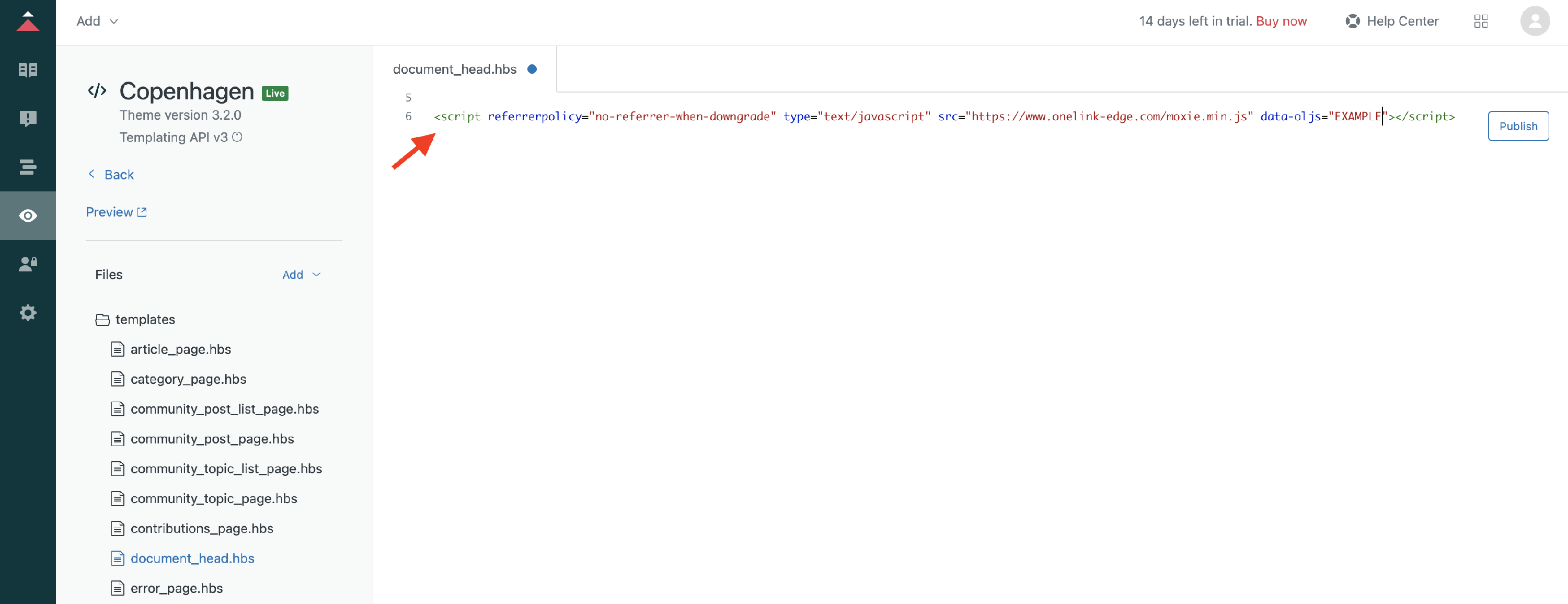
Remember to “Publish” once complete.